> ## Documentation Index
> Fetch the complete documentation index at: https://docs.pond.li/llms.txt
> Use this file to discover all available pages before exploring further.
# Connections
> The relational layer — typed links between Fragments that Pond's intelligent features navigate.
Connections are explicit, typed relationships between Fragments. Together they form a relational layer over your archive — a web Pond draws on for Thread curation, development suggestions, discovery, and [Frames](/frames). The richer this layer becomes, the better those features get.
You don't need to be exhaustive. Even a few Connections give Pond meaningful signal to work with.
 ## Connection types
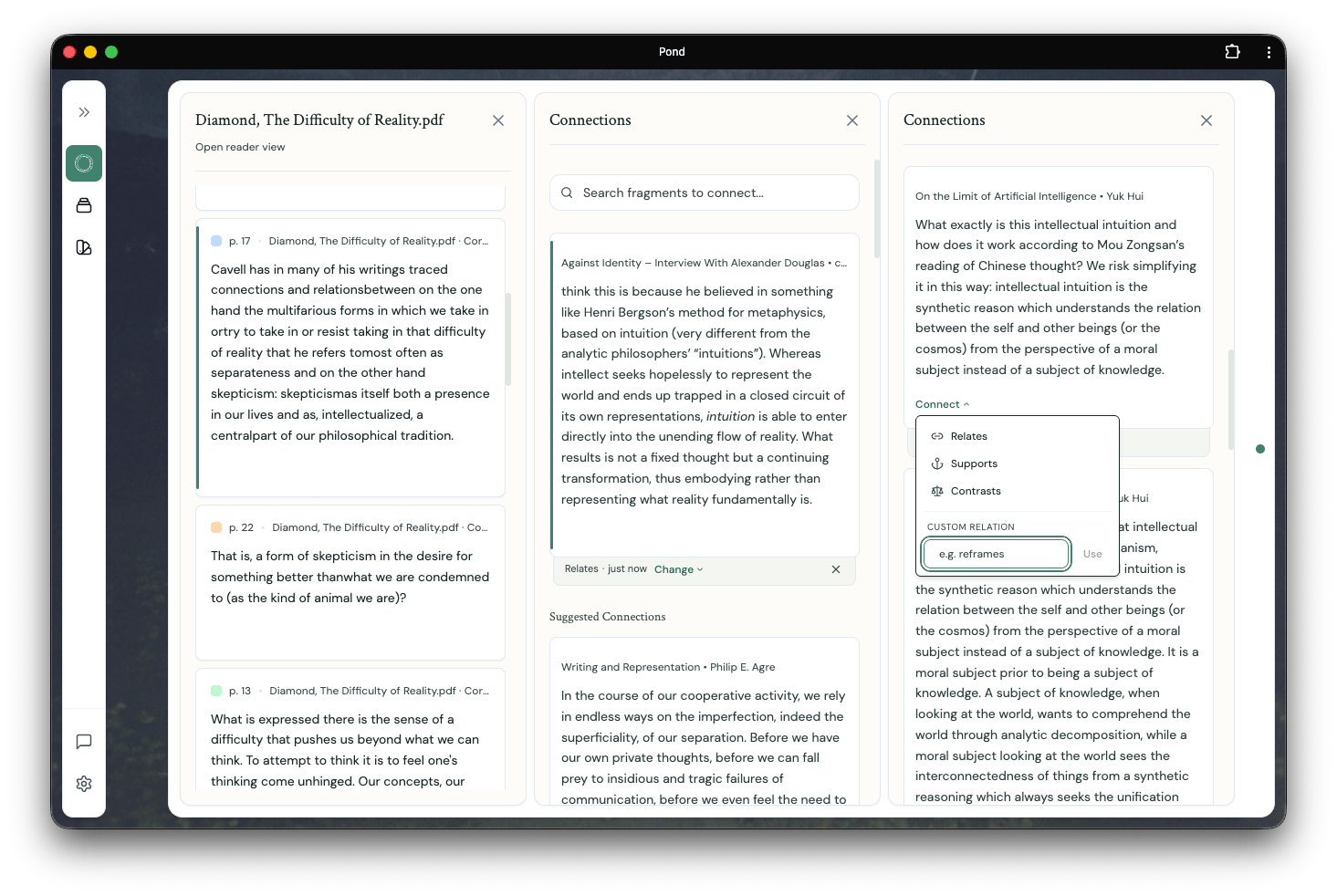
Pond ships with three starter types — **supports**, **extends**, and **contrasts** — and the type field is freeform, so you can type any custom label that fits the relation you have in mind. Use the starter types when they fit, invent your own when they don't.
By specifying the *type* of a relation — not just *that* there is a relation — you give Pond's intelligent features a richer substrate to navigate. Typed relations sharpen Connection suggestions, Thread discovery, development suggestions, and Framing.
## Making Connections
### From the Connections panel
Clicking an Artefact card in the Library opens an Artefact detail panel listing its Fragments. Each Fragment card has a **View connections** button, which opens the Connections panel.
From there, you connect the current Fragment to another by clicking **Connect** on a target Fragment card and choosing the type. Targets can come from:
* The [Suggested Connections](/pond-intelligence#connection-suggestions) list
* The Fragments list of an Artefact detail pane
* A search from the bar at the top of the Connections panel
### From inside a Note
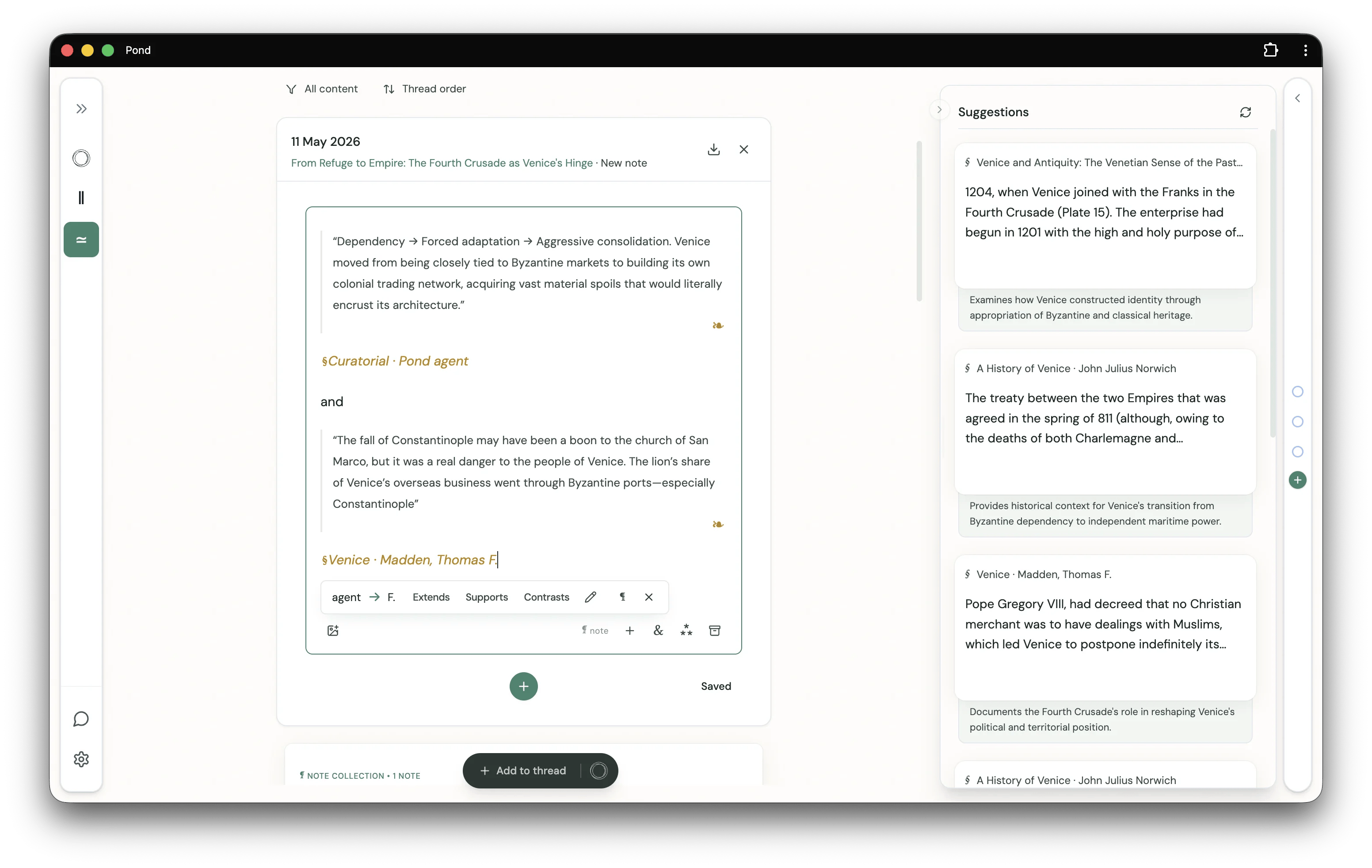
When a [Note](/notes) references two or more Fragments, an inline chip appears beneath them suggesting you connect those Fragments. Pick **Extends**, **Supports**, or **Contrasts** — or open the menu for a custom type — to record the Connection without leaving the editor.
## Connection types
Pond ships with three starter types — **supports**, **extends**, and **contrasts** — and the type field is freeform, so you can type any custom label that fits the relation you have in mind. Use the starter types when they fit, invent your own when they don't.
By specifying the *type* of a relation — not just *that* there is a relation — you give Pond's intelligent features a richer substrate to navigate. Typed relations sharpen Connection suggestions, Thread discovery, development suggestions, and Framing.
## Making Connections
### From the Connections panel
Clicking an Artefact card in the Library opens an Artefact detail panel listing its Fragments. Each Fragment card has a **View connections** button, which opens the Connections panel.
From there, you connect the current Fragment to another by clicking **Connect** on a target Fragment card and choosing the type. Targets can come from:
* The [Suggested Connections](/pond-intelligence#connection-suggestions) list
* The Fragments list of an Artefact detail pane
* A search from the bar at the top of the Connections panel
### From inside a Note
When a [Note](/notes) references two or more Fragments, an inline chip appears beneath them suggesting you connect those Fragments. Pick **Extends**, **Supports**, or **Contrasts** — or open the menu for a custom type — to record the Connection without leaving the editor.
 ### Along a Trail
You can also make Connections opportunistically as you read. [Trails](/trails) record the path you take through Pond as one Fragment leads you to another; when two items on a Trail strike you as related, record a Connection between them from the Trail itself — without breaking the flow of reading.
## Navigating Connections
See [Trails](/trails) for how Pond records the paths you take across Connections as you read and think.
### Along a Trail
You can also make Connections opportunistically as you read. [Trails](/trails) record the path you take through Pond as one Fragment leads you to another; when two items on a Trail strike you as related, record a Connection between them from the Trail itself — without breaking the flow of reading.
## Navigating Connections
See [Trails](/trails) for how Pond records the paths you take across Connections as you read and think.