> ## Documentation Index
> Fetch the complete documentation index at: https://docs.pond.li/llms.txt
> Use this file to discover all available pages before exploring further.
# Fragments
> The excerpts you mark as significant, and the annotations you make.
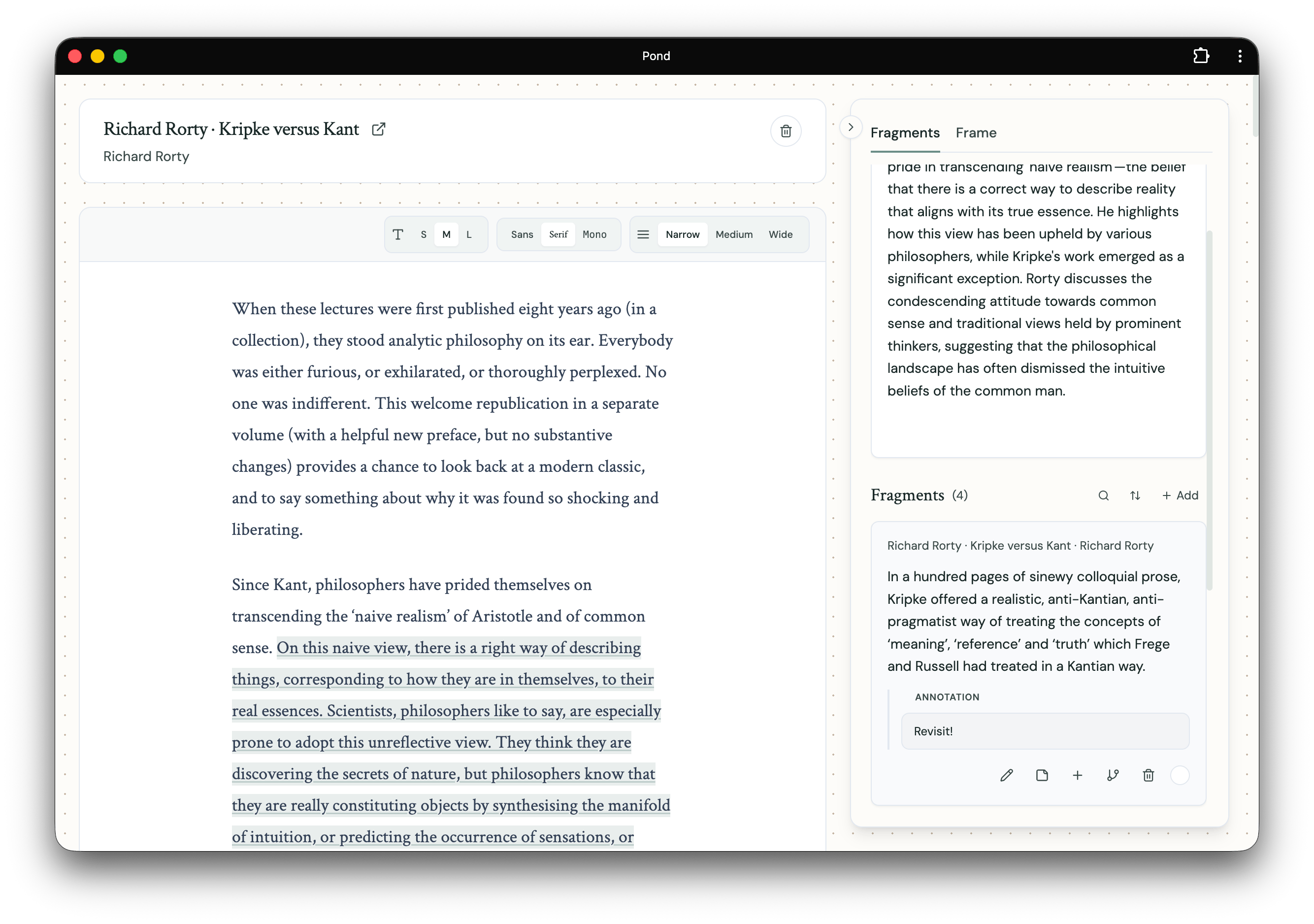
Fragments are the excerpts you mark as significant from your Artefacts — passages of text, images (a figure, diagram, or page), or clips from audio and video — along with the annotations you make (margin-notes and other commentary) on them.
 ## Creating Fragments
### Ask Pond to suggest passages
Open an Artefact and choose **Suggest passages**. Pond reads the whole document and proposes passages worth marking, in two groups: those that **connect to your threads** and those **worth marking beyond them**. Accept the ones that resonate — accepting marks them to your library — and dismiss the rest. This works on any Artefact with body text: articles, notes, and web pages as well as PDFs, annotated or not, so you don't have to highlight by hand to get started.
Letting Pond suggest passages is a [membership](/pricing) feature — it's one of the agentic runs Pond performs on your behalf. Marking is still yours to do: Pond proposes, you decide what to keep.
### From PDF highlights and notes
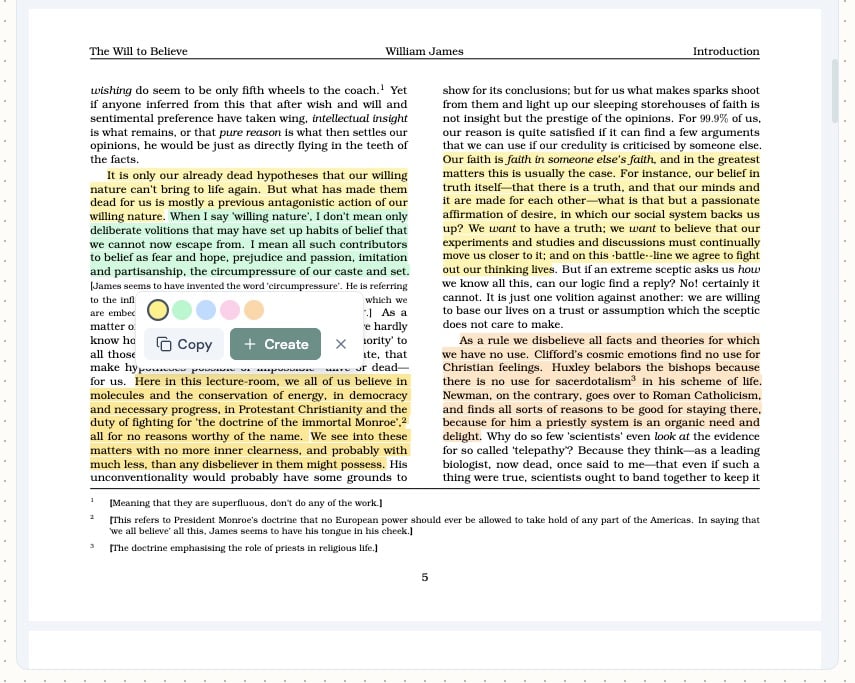
When you upload a PDF you've already highlighted or annotated, Pond detects those marks and turns them into Fragments automatically.
### By hand, in the Artefact detail view
You can also mark Fragments yourself by selecting text in the expanded Artefact detail view:
## Creating Fragments
### Ask Pond to suggest passages
Open an Artefact and choose **Suggest passages**. Pond reads the whole document and proposes passages worth marking, in two groups: those that **connect to your threads** and those **worth marking beyond them**. Accept the ones that resonate — accepting marks them to your library — and dismiss the rest. This works on any Artefact with body text: articles, notes, and web pages as well as PDFs, annotated or not, so you don't have to highlight by hand to get started.
Letting Pond suggest passages is a [membership](/pricing) feature — it's one of the agentic runs Pond performs on your behalf. Marking is still yours to do: Pond proposes, you decide what to keep.
### From PDF highlights and notes
When you upload a PDF you've already highlighted or annotated, Pond detects those marks and turns them into Fragments automatically.
### By hand, in the Artefact detail view
You can also mark Fragments yourself by selecting text in the expanded Artefact detail view:
 ### Image Fragments
When an Artefact is an image — or contains images, like a PDF page or figure — you can mark the image itself (or a region of it) as a Fragment. Image Fragments behave like text Fragments: you can connect them, add them to Threads, and write annotations on them.
Marking is yours to do. It matters that we identify for ourselves what catches our interest in a text, so Pond proposes candidates rather than marking on your behalf — nothing enters your library until you accept it. [**Frames**](/frames) work the same way, interpreting what you read through the lens of the Threads you are developing and offering ways into the work, without deciding for you.
## Working with Fragments
Fragments are not just storage — they're meant to be moved, related, and written through. Once you have one, you can:
* **Connect** it to other Fragments via typed [Connections](/connections).
* **Add** it to a [Thread](/threads).
* **Reference** it inside a [Note](/notes) via `@`-mention (scoped to the Thread's contents). When two or more Fragments are referenced in the same Note, an inline chip suggests you connect them.
### Image Fragments
When an Artefact is an image — or contains images, like a PDF page or figure — you can mark the image itself (or a region of it) as a Fragment. Image Fragments behave like text Fragments: you can connect them, add them to Threads, and write annotations on them.
Marking is yours to do. It matters that we identify for ourselves what catches our interest in a text, so Pond proposes candidates rather than marking on your behalf — nothing enters your library until you accept it. [**Frames**](/frames) work the same way, interpreting what you read through the lens of the Threads you are developing and offering ways into the work, without deciding for you.
## Working with Fragments
Fragments are not just storage — they're meant to be moved, related, and written through. Once you have one, you can:
* **Connect** it to other Fragments via typed [Connections](/connections).
* **Add** it to a [Thread](/threads).
* **Reference** it inside a [Note](/notes) via `@`-mention (scoped to the Thread's contents). When two or more Fragments are referenced in the same Note, an inline chip suggests you connect them.