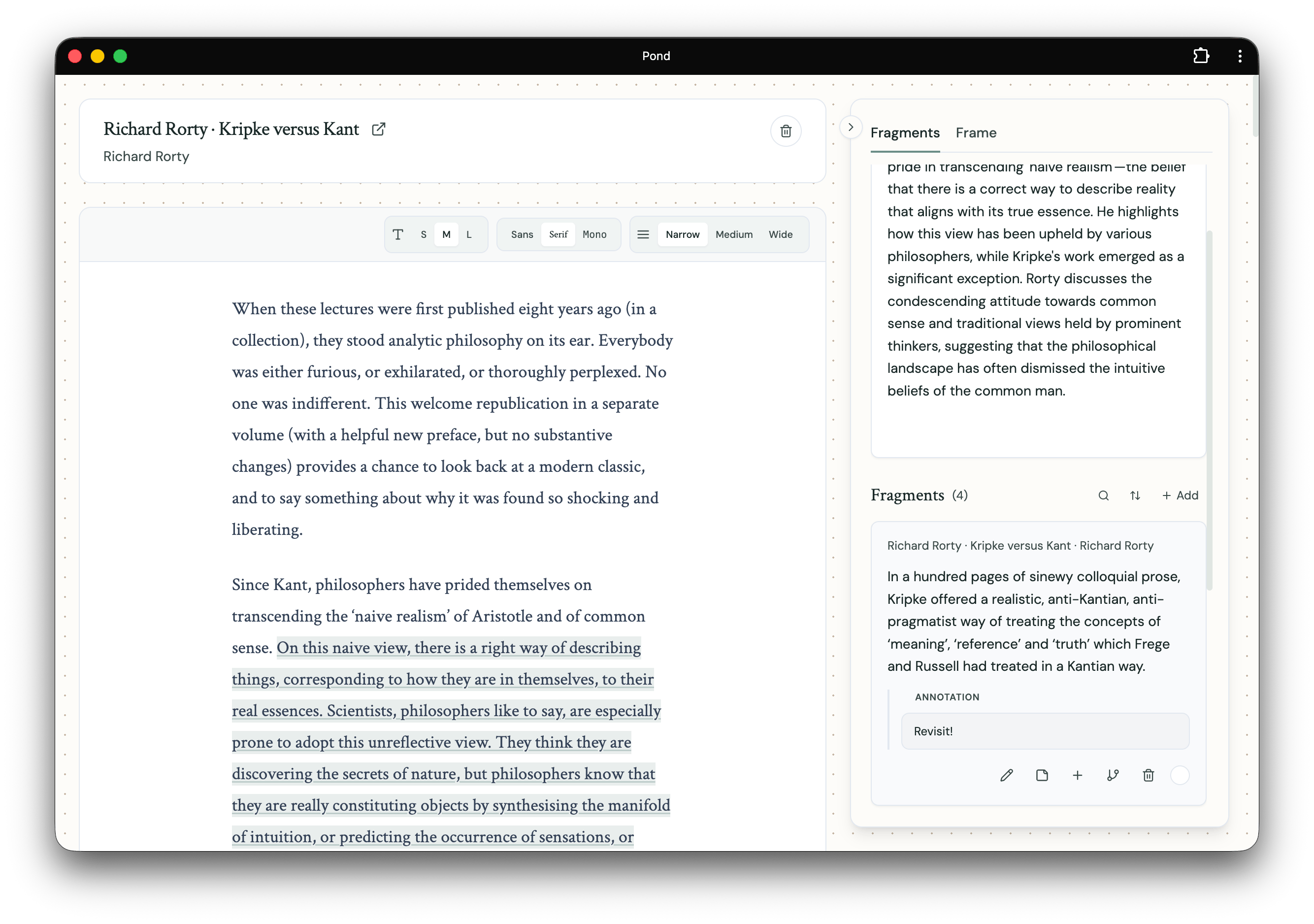
Creating Fragments
Ask Pond to suggest passages
Open an Artefact and choose Suggest passages. Pond reads the whole document and proposes passages worth marking, in two groups: those that connect to your threads and those worth marking beyond them. Accept the ones that resonate — accepting marks them to your library — and dismiss the rest. This works on any Artefact with body text: articles, notes, and web pages as well as PDFs, annotated or not, so you don’t have to highlight by hand to get started. Letting Pond suggest passages is a membership feature — it’s one of the agentic runs Pond performs on your behalf. Marking is still yours to do: Pond proposes, you decide what to keep.From PDF highlights and notes
When you upload a PDF you’ve already highlighted or annotated, Pond detects those marks and turns them into Fragments automatically.By hand, in the Artefact detail view
You can also mark Fragments yourself by selecting text in the expanded Artefact detail view: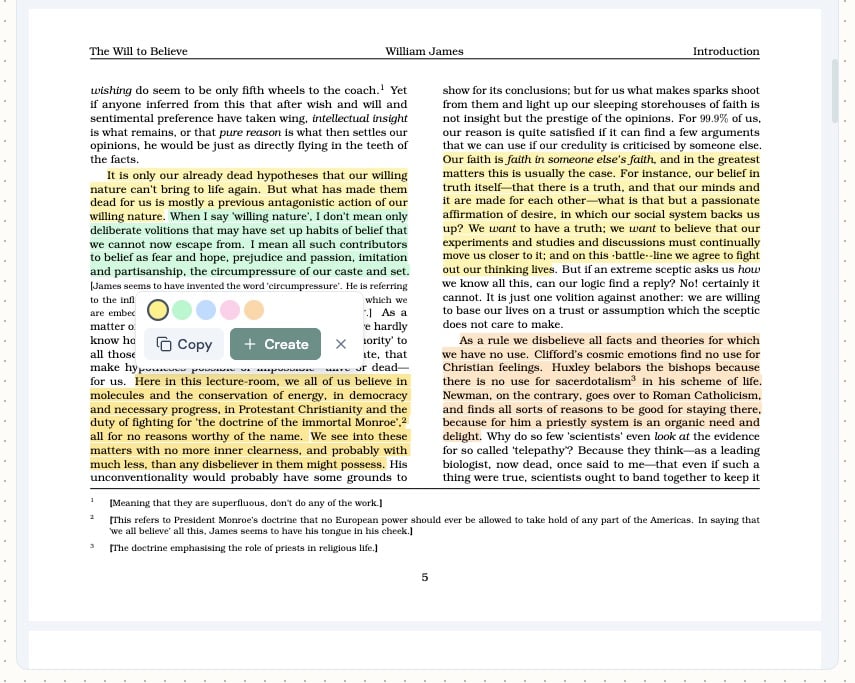
Image Fragments
When an Artefact is an image — or contains images, like a PDF page or figure — you can mark the image itself (or a region of it) as a Fragment. Image Fragments behave like text Fragments: you can connect them, add them to Threads, and write annotations on them.Marking is yours to do. It matters that we identify for ourselves what catches our interest in a text, so Pond proposes candidates rather than marking on your behalf — nothing enters your library until you accept it. Frames work the same way, interpreting what you read through the lens of the Threads you are developing and offering ways into the work, without deciding for you.
Working with Fragments
Fragments are not just storage — they’re meant to be moved, related, and written through. Once you have one, you can:- Connect it to other Fragments via typed Connections.
- Add it to a Thread.
- Reference it inside a Note via
@-mention (scoped to the Thread’s contents). When two or more Fragments are referenced in the same Note, an inline chip suggests you connect them.