Accessing Frames
Open any Artefact in the viewer sidebar, then click the full artefact view button to enter the full reader — Frames lives there.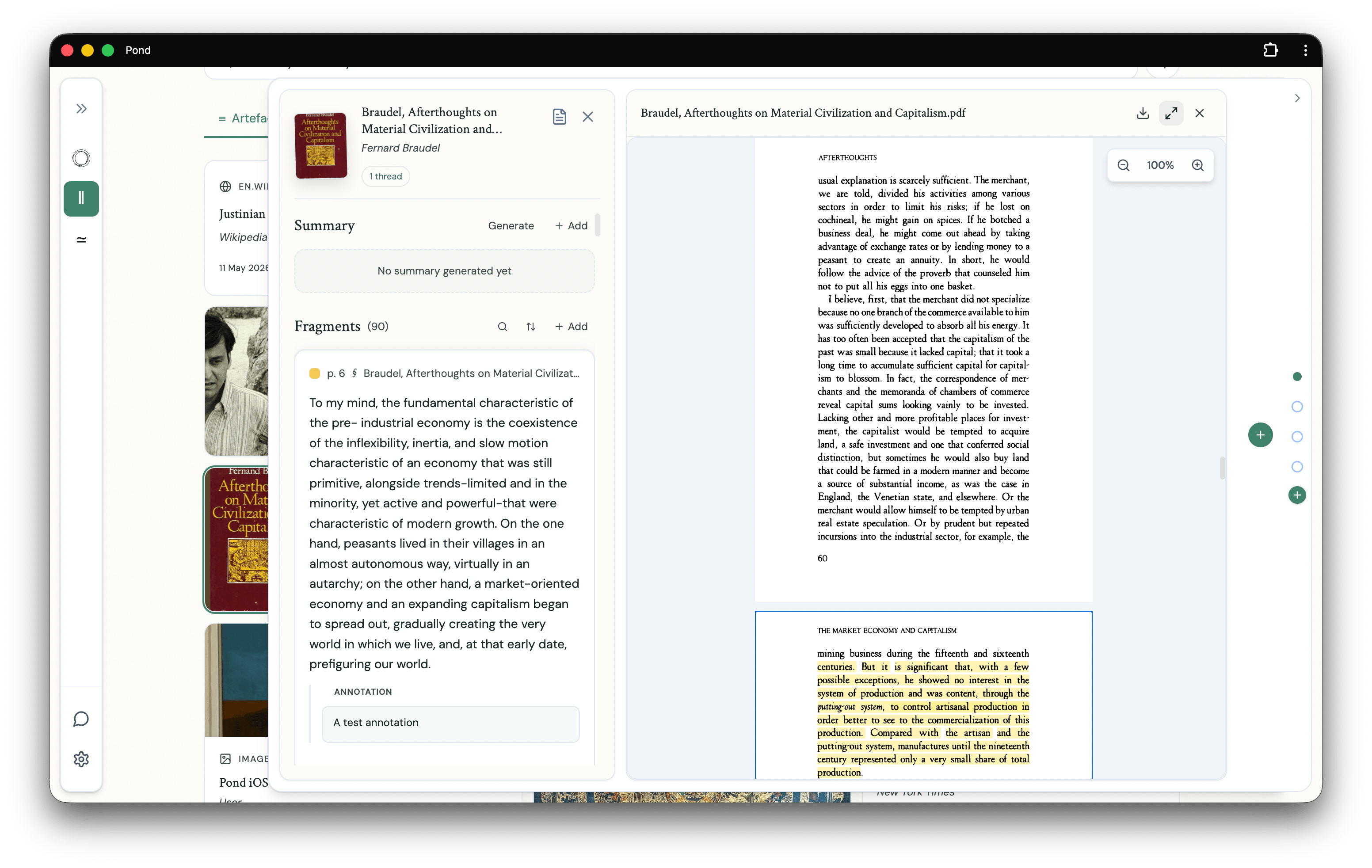
Ideally, Frames will live in the Pond browser extension and mobile app, so you can use it on whatever you come across as you read around the web or on the go. For now, it’s only available inside the full artefact viewer.
Using Frames
1. Choose your lenses
In the Frame sidebar, search your library and select the Threads and Artefacts you want to frame through. Each selection becomes a lens through which Pond interprets the current source.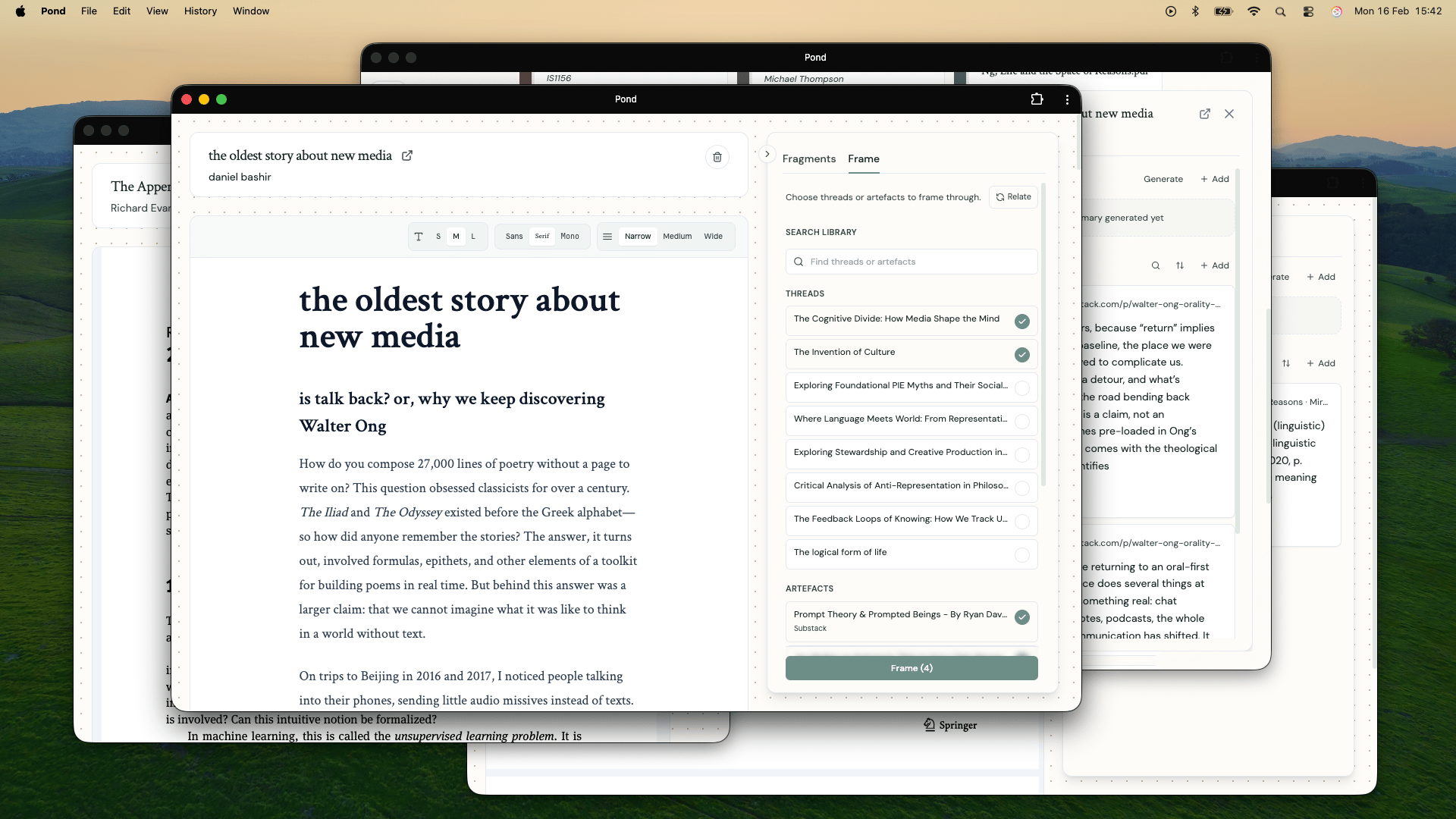
2. Generate the Frame
Click Frame to generate. Pond reads the current Artefact against your selected material and produces a set of interpretive suggestions — each one identifying a point of contact between the source and your library.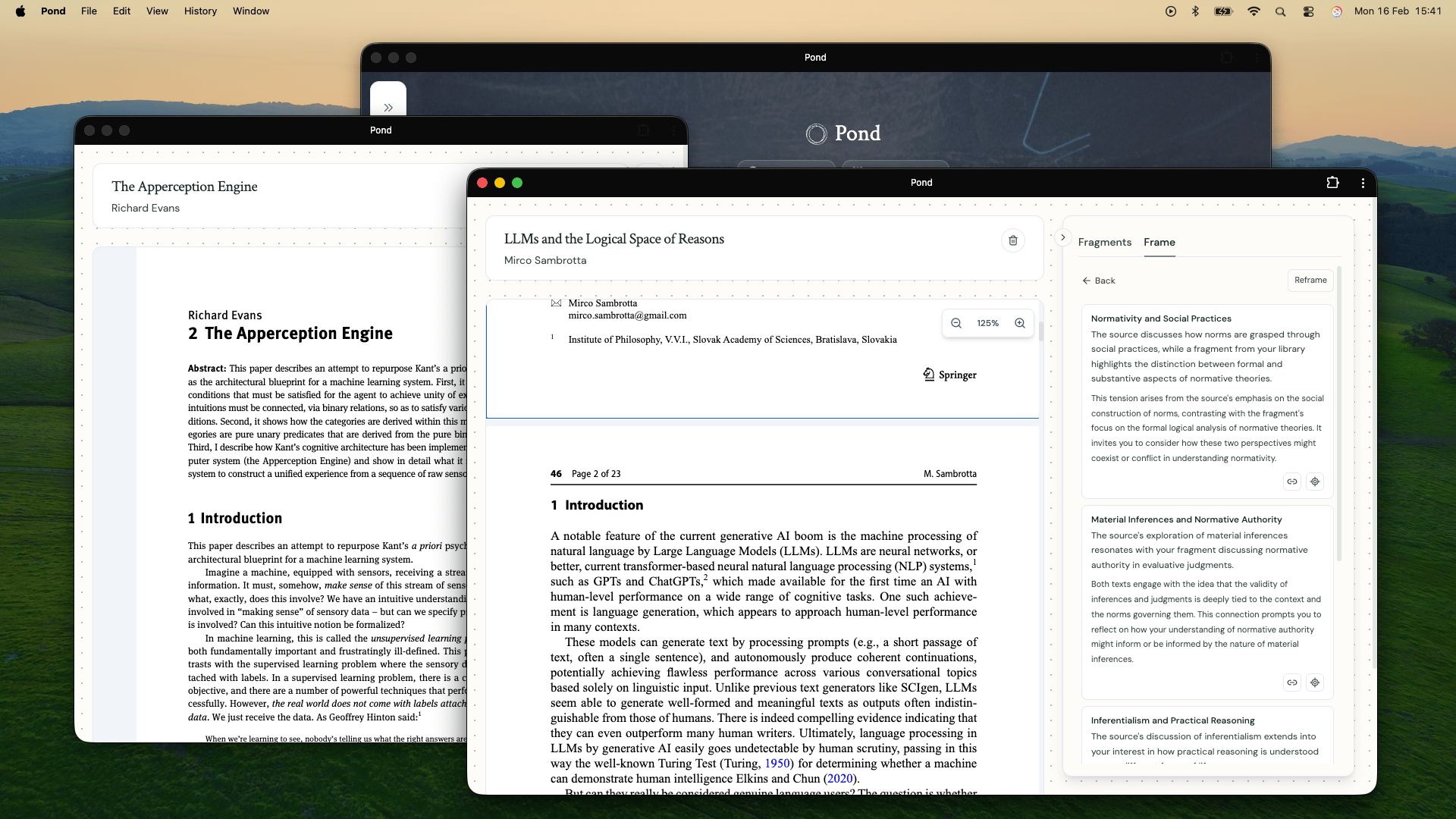
3. Work with the results
Frame suggestions offer ways in to the source being framed; you can locate the passages in the source that was their basis by clicking on the ‘locate’ icon on the suggestion cards, or you can save the suggestion as a Note in a Thread, from where you can develop the ideas it expresses.Frames take seriously the intertwining of memory and perception — the way what you’ve already been thinking shapes what you notice in something new. Rather than summarising or extracting, they create a dialogue between what you’re reading and what you’ve read.