@-mention.
Where Notes live
- Inside a Thread, on the Notebook tab — see Workspace.
- In the Library, under the Notes tab — every Note you’ve written, surfaced alongside your Artefacts.
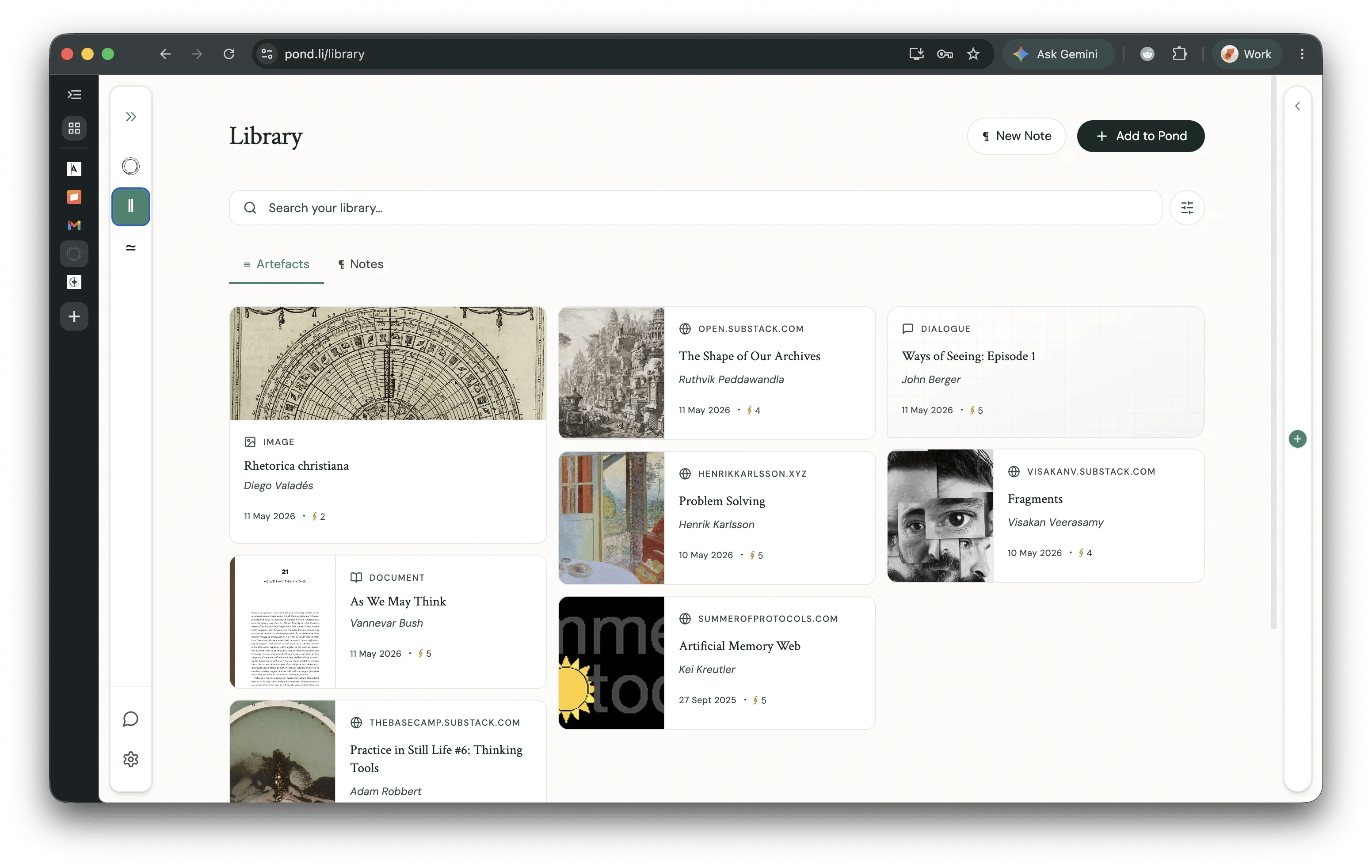
Writing in a Note
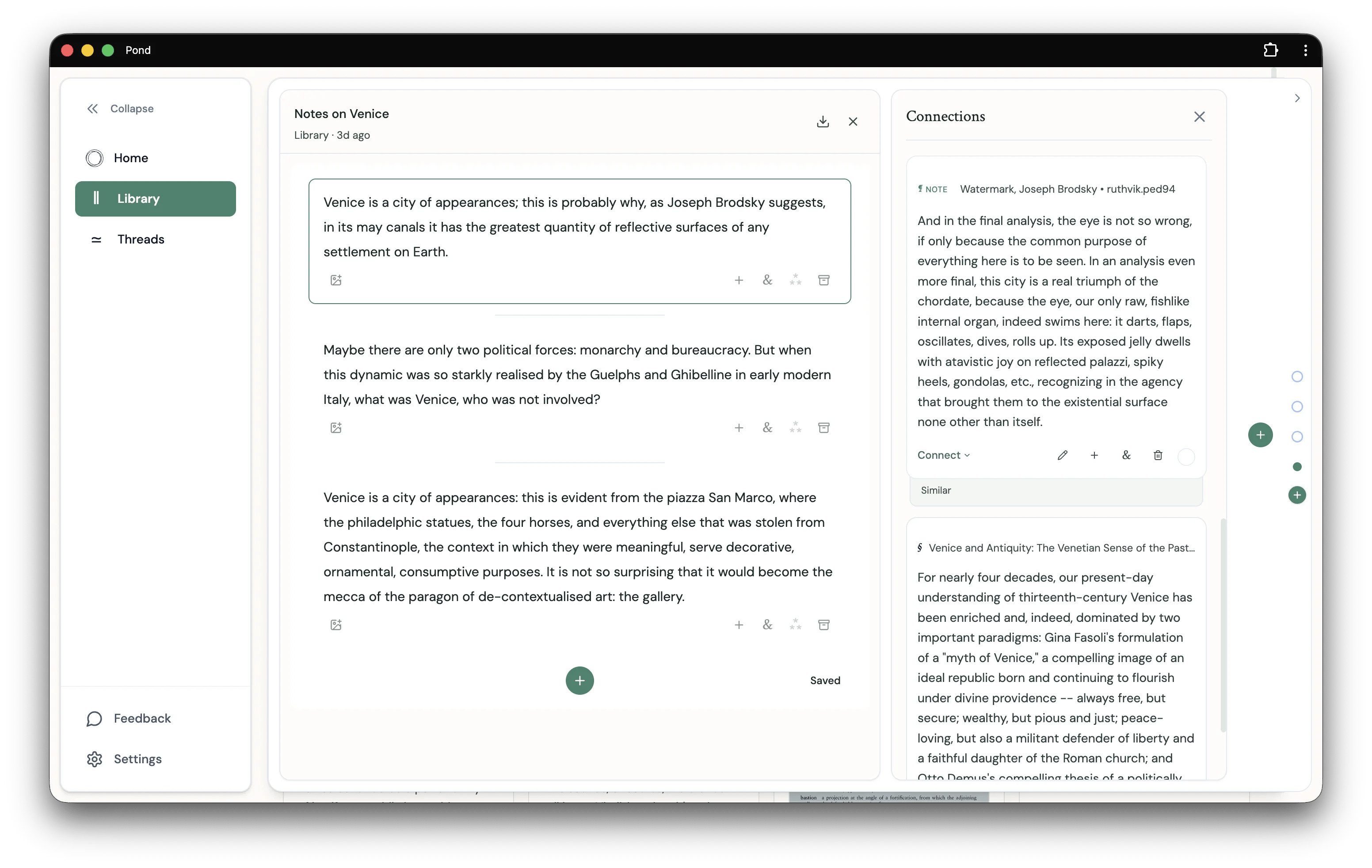
@-mention to reference
Inside a Thread’s Notebook, type@ to reference any Fragment, Note, or Artefact that’s already in the Thread. The picker scopes to the Thread’s contents — it’s a way to weave together material you’ve already gathered, not a search across your whole Pond.
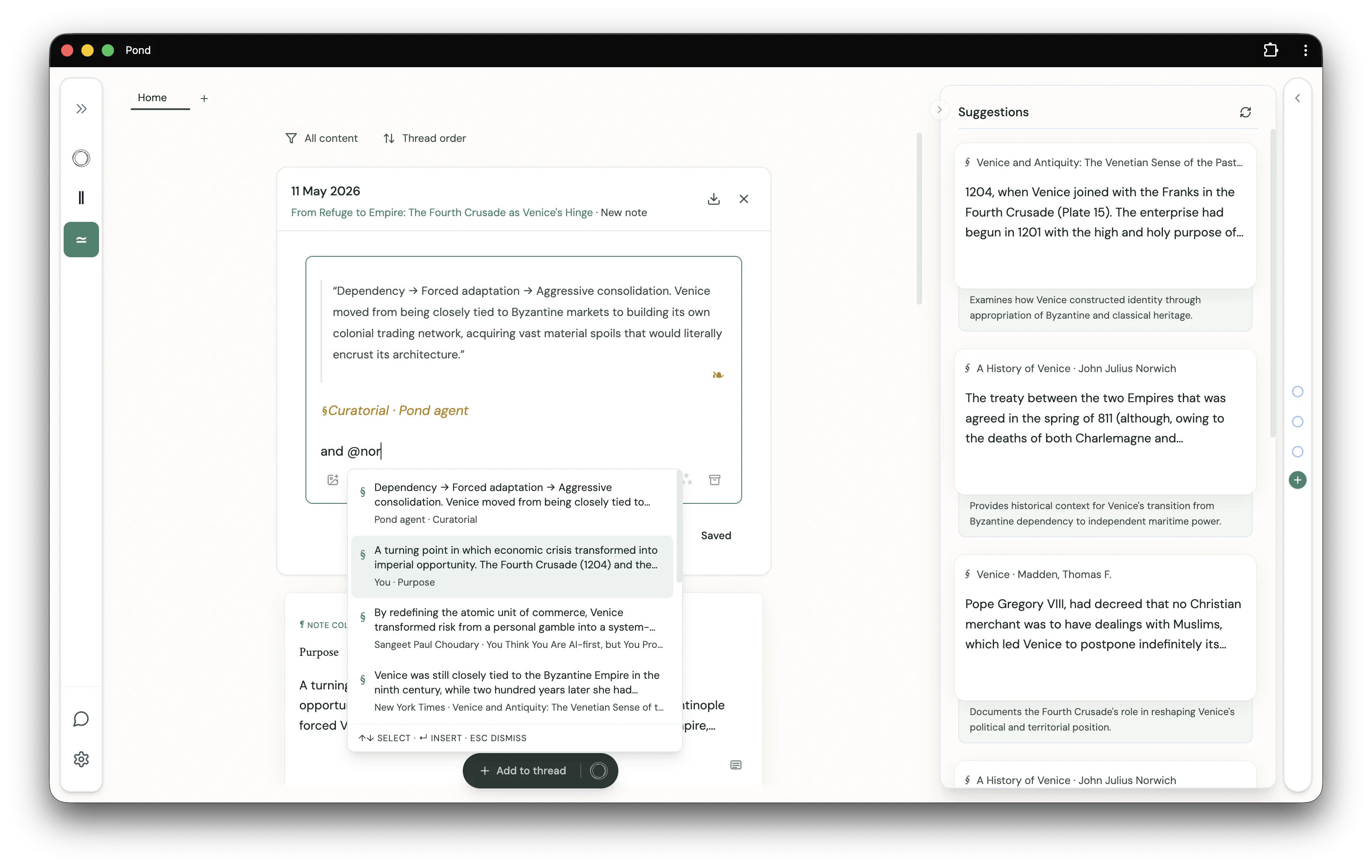
Connect referenced Fragments
When a Note references two or more Fragments, an inline chip appears beneath them suggesting you connect those Fragments. Pick Extends, Supports, or Contrasts — or open the menu for a custom type — to record the Connection in place.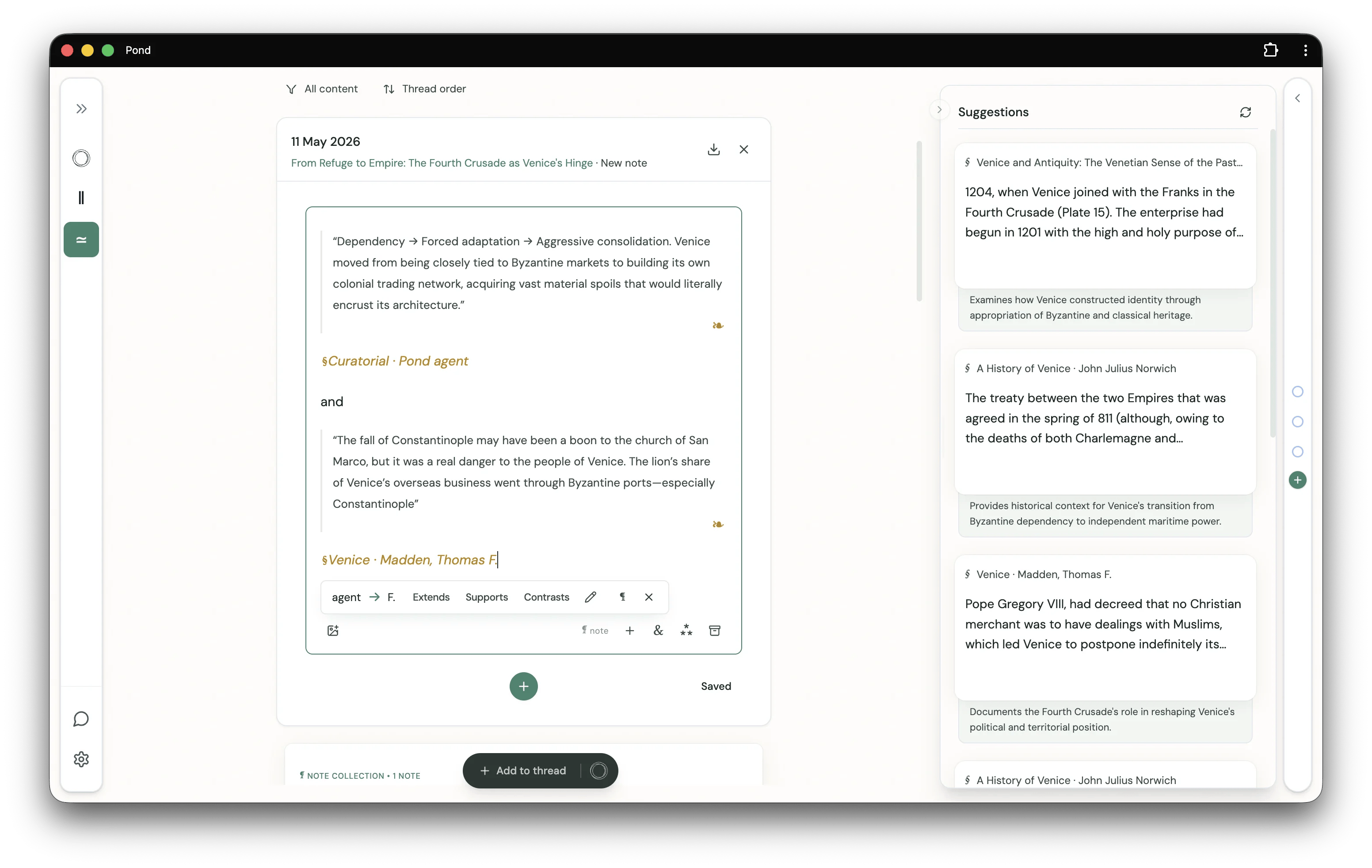
Promoting a Note to a Move
A Note becomes a Move when you give it a type from the Move type badge in the editor —#Thesis, #Question, #Tension, and so on. Moves are how a Thread gains direction, and how Pond’s intelligent features read what the Thread is doing.
See Moves for the type vocabulary, Pond-authored Moves, and where this is heading.